What HyperZebra does
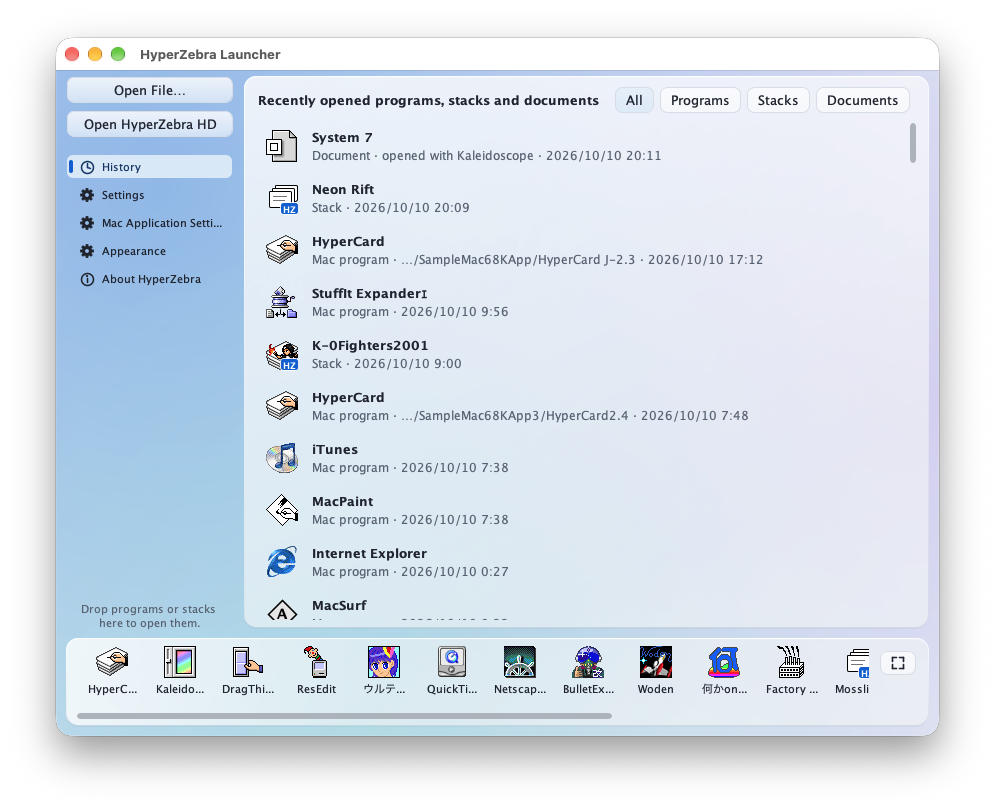
HyperZebra combines tools for working with HyperCard stacks with a compatibility environment for classic Macintosh applications. You can open an existing stack, browse its contents, edit its cards and scripts, or launch a supported Mac application.
HyperZebra builds on HyperCard’s ease of use and adds features for working with color, shapes, and arrays.
Opening stacks and applications
HyperZebra starts with a launcher. Choose “Open File…” or drop a file onto the window to open a stack or an application.
You can add frequently used applications and stacks to the dock at the bottom.
Settings include Japanese and English interface languages and display zoom. Classic Mac applications also have individual settings for screen size, color depth, and execution speed.
Importing and using HyperCard stacks
When you open a HyperCard stack, it is converted into a HyperZebra stack.
The screenshot below shows the imported “Train Set” stack.
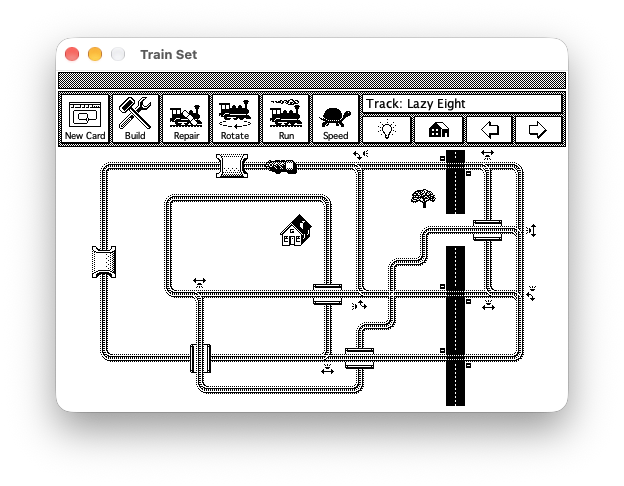
The converted data is stored in a .hzb file created beside the original stack. Open that file for subsequent work.
Editing cards with color and shapes
You can edit existing stacks or create new ones in HyperZebra. Use the tool palette to place buttons and fields, and the painting tools to draw pictures.
The “Neon Rift” editing example shows the game screen with the tool palette, color palette, and card information dialog open.
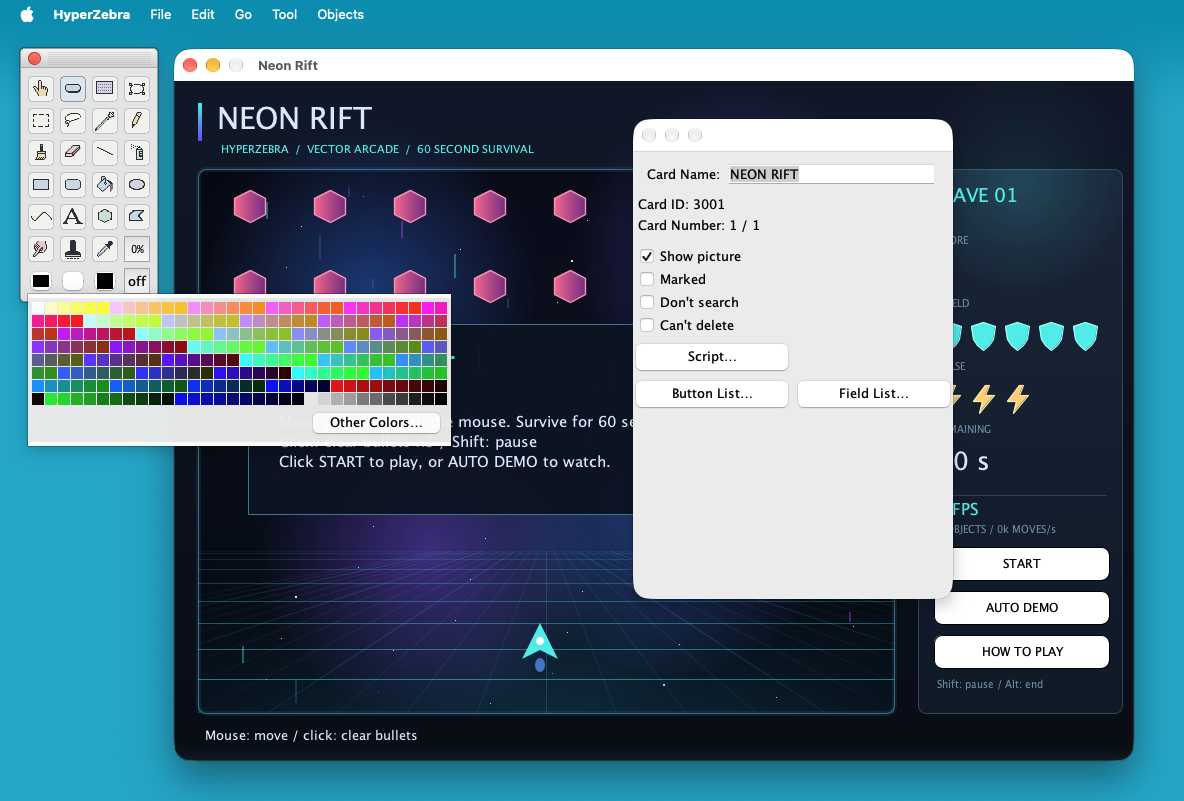
Alongside painting, HyperZebra supports editable shapes: rectangles, ellipses, polygons, curves, and text. Shapes can have colors, gradients, opacity, and rotation. Neon Rift is a game sample built with these shapes and HyperTalk.
Grouping elements and presenting data
Panels group elements so they can be moved, shown, or hidden together. They can also hold data and scripts. Fields can present their contents as tables or hierarchical outlines, and supported SVG elements can be imported as editable shapes.
Adding behavior with HyperTalk
The script editor includes a command and function reference, and a debugger that can pause execution and inspect variables. Stepping through a script helps connect each statement to what happens on screen.
HyperZebra also adds arrays, dictionaries, web text retrieval, JSON, and regular expressions. The same scripting language can handle both card interactions and data processing.
Running classic Mac applications
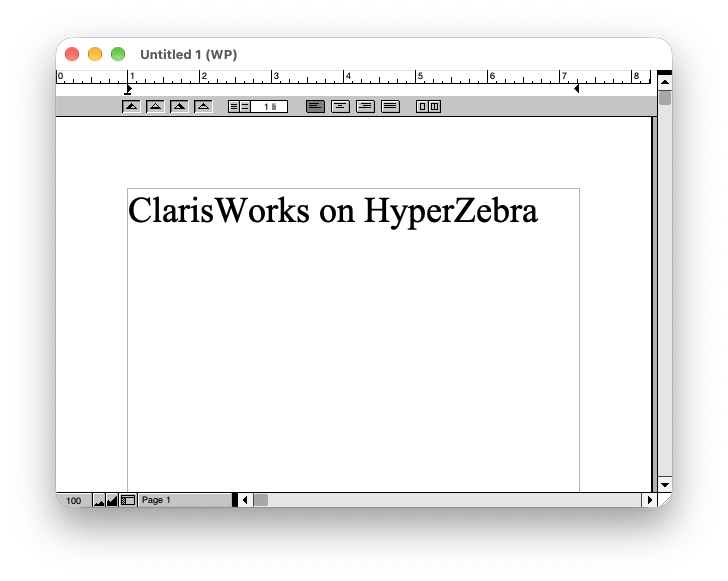
HyperZebra also includes a compatibility environment for running classic Macintosh 68K and PowerPC code.
It emulates the applications’ CPU instructions and provides Mac Toolbox services for windows, menus, graphics, sound, and file access. Rather than booting a complete classic Mac OS installation, HyperZebra implements the services applications need to run.
Unlike conventional Mac emulators, it does not require a ROM or an OS installation.
3D games can also run.
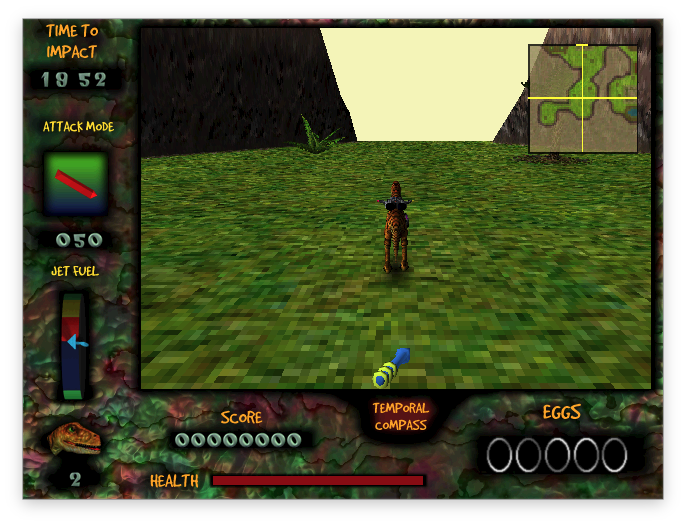
Text and pictures can be exchanged with the host OS through the clipboard. Screen size, color depth, zoom, and speed settings can be adjusted for individual applications.
Frequently asked questions
Questions about creating stacks, running Mac applications, and the project’s development. Select a question to read its answer.
HyperCard
What is this?
It is an environment for running and editing HyperCard stacks. You can display their cards and pictures and edit their contents and scripts.
What can I make?
You can make picture books, quizzes, and simple games. There is no feature for turning a stack into a standalone application or exporting it to the web.
Can I open HyperCard stacks I made years ago?
You can import HyperCard-format stacks, display their cards and pictures, and edit them. HyperTalk and external commands are supported, but compatibility is not complete and depends on the features a stack uses.
Are there features that HyperCard did not have?
HyperZebra adds color painting, editable shapes, gradients, and SVG import. It also includes panels for grouping elements, table and outline fields for displaying data, JSON, and regular expressions.
How are edited stacks saved?
HyperZebra saves a stack as a single .hzb file that opens with a double-click and can be copied or sent like any other document. .hzb folders made by earlier versions still open. You can also export in HyperCard format, but HyperZebra-specific features such as its color features do not carry over. Keep both the original stack and the working .hzb file.
What should I watch out for when moving old files?
Classic Mac files may contain a resource fork that holds pictures, sounds, and other information separately from the regular data. Preserve it when moving files. Without it, a file may fail to open or some of its contents may be missing.
Which operating systems can I use?
HyperZebra is a Java application for macOS, Windows, and Linux. Application packages that include a Java runtime do not require a separate Java installation.
Is it free to use?
HyperZebra itself is free to use and is released under the MIT License. Stacks and classic Mac applications have their own terms of use and distribution.
The Mac compatibility layer
What does the Mac compatibility layer do?
It runs supported applications made for classic Mac OS on a present-day computer. HyperZebra provides the Mac services these applications use, including windows, menus, drawing, sound, and file operations, on the host operating system.
Which OS version is running?
Classic Mac OS itself is not running. To accommodate software that checks the OS version, HyperZebra reports “9.2.2,” the final version of Mac OS 9, when applications ask. This is a compatibility response; it does not mean that Mac OS 9.2.2 has been booted.
What kinds of applications can run?
The compatibility layer targets 68K and PowerPC applications made for Mac OS 9 and earlier versions of Mac OS. Actual compatibility depends on the application version and the features it uses.
What does not run?
Applications that require Mac OS X do not run. Many system extensions also cannot run because of how they interact with the system.
How does it work?
HyperZebra emulates 68K and PowerPC CPU instructions and handles the Mac Toolbox and system-library calls made by applications. The compatibility environment combines CPU emulation with implementations of the Mac services applications need.
Do I need a Mac ROM or a classic Mac OS installation?
No. HyperZebra provides the Mac services needed to run applications without booting a complete classic Mac OS installation. Some applications may still require additional extensions or libraries.
How do I launch an application?
Open its file from the launcher or drag and drop it onto the launcher. You can reopen applications from the history and register them in the dock.
Does every classic Mac application work?
Compatibility varies with the application, its version, and the features used. Applications that require unsupported system services or direct hardware access may have problems starting, displaying content, or responding to input. Even when an application starts, features such as editing and saving need to be checked individually.
Can I copy and paste text and pictures to and from my computer?
Text and pictures can be exchanged through the host OS clipboard. Supported text and image files can also be converted, with settings for saving UTF-8 text and PNG images. Application-specific document formats depend on the application.
Can I simply copy an old application’s files?
Some classic Mac files require a resource fork containing program code, pictures, or other data. Preserve it when copying files, including when moving them to Windows or Linux. HyperZebra supports MacBinary and resource information stored in ._filename sidecar files.
Can I open disk images of old floppies and CDs?
You can open supported disk images, including Disk Copy formats and HFS, HFS Plus, and MFS volumes. Applications can access their contents as read-only disks. Extract the contents to a folder if you need to modify them.
Can I use extensions and control panels?
Some supported extensions and control panels can be used. HyperZebra has a virtual “System Folder” for extensions and preference files. Whether a particular component works depends on the system services it requires.
Can I add fonts?
Yes. Place supported classic Mac font suitcases in the “Fonts” folder inside the virtual “System Folder.” Bitmap fonts and TrueType fonts contained in suitcases are supported. Preserve the resource forks when copying old fonts.
What if the display is too small, colors look wrong, or an application runs too fast?
Use Application Settings to adjust screen size, color depth, zoom, and execution speed. Settings are saved per application, so games and productivity applications can use different configurations. Restart an application after changing settings that take effect at launch.
Are 3D games supported?
HyperZebra includes compatibility implementations of QuickDraw 3D, RAVE, and OpenGL 1.2.1 for classic Mac 3D games that use them. Rendering is performed in software inside HyperZebra. Compatibility and speed depend on the game’s features and the performance of the host computer.
Can I change the appearance?
You can change the appearance of windows, scrollbars, and buttons with Kaleidoscope.
Movie playback depends on the format. Some movies use built-in decoders; others use FFmpeg on the host OS or QuickTime (~ver.4) inside the compatibility environment. See the application’s help for details.
Development
How was HyperZebra developed?
I started from the HyperCard clone I had been developing around 2012 and asked AI to continue its development. AI has carried out 100% of that subsequent development.
Which AI did you use?
I started with GPT-5.6 Sol, then mainly used Opus5 and Opus5.5. I used the ChatGPT Plus and Claude Max5 plans.
What was your development process?
I kept asking AI to implement features as I thought of them. For larger features, I mainly broke the work into pieces the AI could implement and had it work through them in order. To improve compatibility, I also had AI run a large number of HyperCard stacks and classic Mac applications.
Project and references
HyperZebra is implemented in Java and runs on macOS, Windows, Linux, and other environments that support Java.
“HyperZebra Help,” available from the launcher’s Help menu, explains stack import, editing, HyperTalk extensions, and the Mac application compatibility environment in Japanese and English.
- HyperZebra repository ↗Source code and project documentation.
The stacks and applications shown have their own authors and terms of use and distribution, separate from HyperZebra’s license.